Case Study
FMCG Field Team App Redesign
I designed the core flows of a field check-in app for an international FMCG brand, rethinking the web logic for how store visits actually happen.
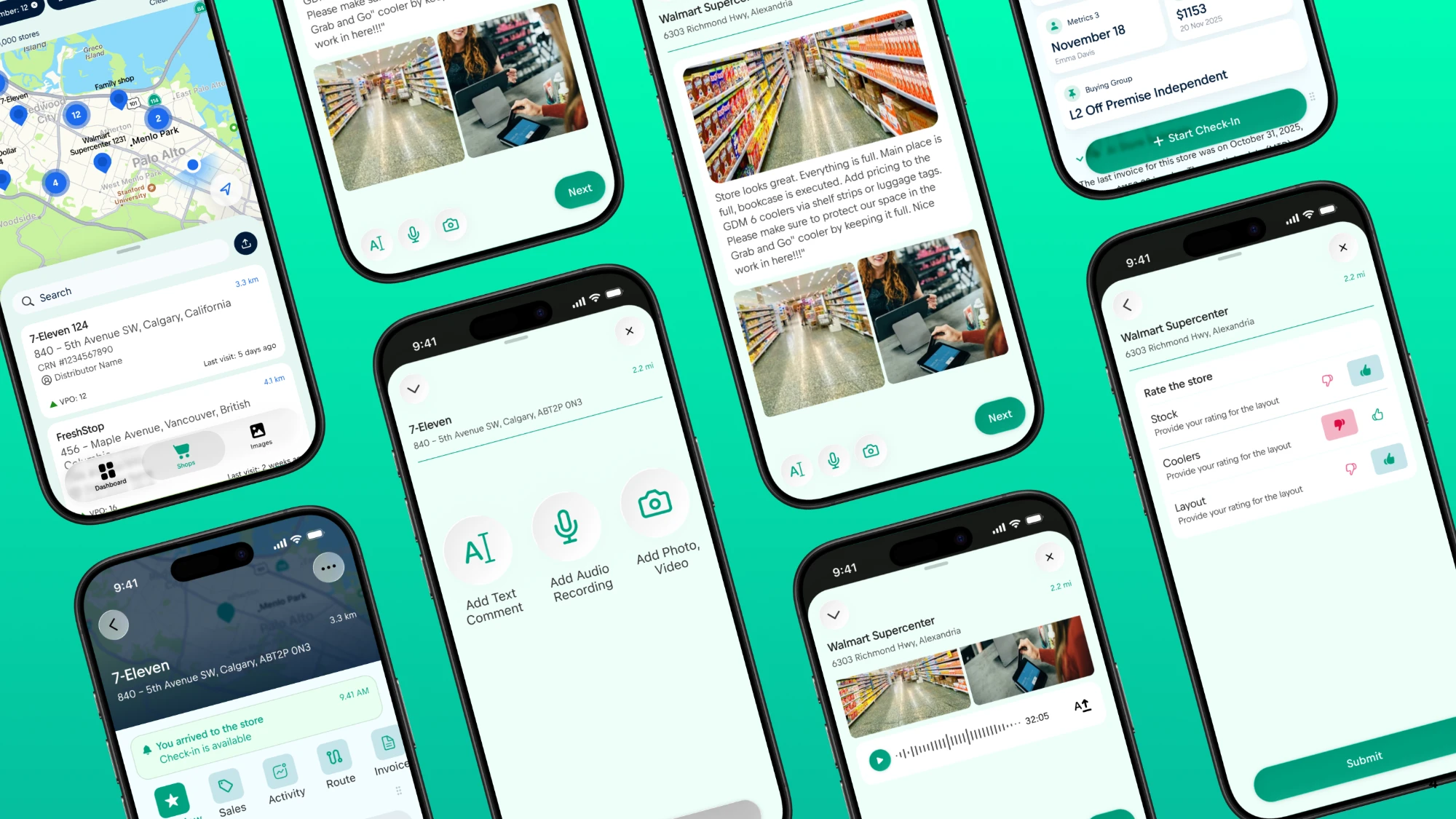
01
Context
Product
A mobile app for field employees who visit retail locations in person to check product placement and log issues on-site. A web version already existed, and the app was built on top of it.
Problem
The web flows weren't designed for how check-ins happen in the field: on the move, one-handed, in short windows of time, often interrupted mid-task. The check-in logic itself had to be rethought, not resized.
My role
Some screens started from the lead designer's wireframes, which I turned into final UI. Others had no wireframe at all, and I explored original solutions from scratch for the team to evaluate.
Scope
Onboarding · Store search and filtering · Store card with check-in history · Check-in and quick check-in · Interactive prototype of the full check-in flow.
02
Requirements
Store visits happen on the move, with limited time per location. That set two hard requirements.
Speed
Logging an observation by photo, audio, or text had to take seconds, not minutes.
Interruptibility
A check-in had to be opened, collapsed, and resumed at any point without losing progress.
On top of that, the brand's identity had to align with Apple's new iOS Liquid Glass guidelines, which had no established third-party reference implementations yet.
03
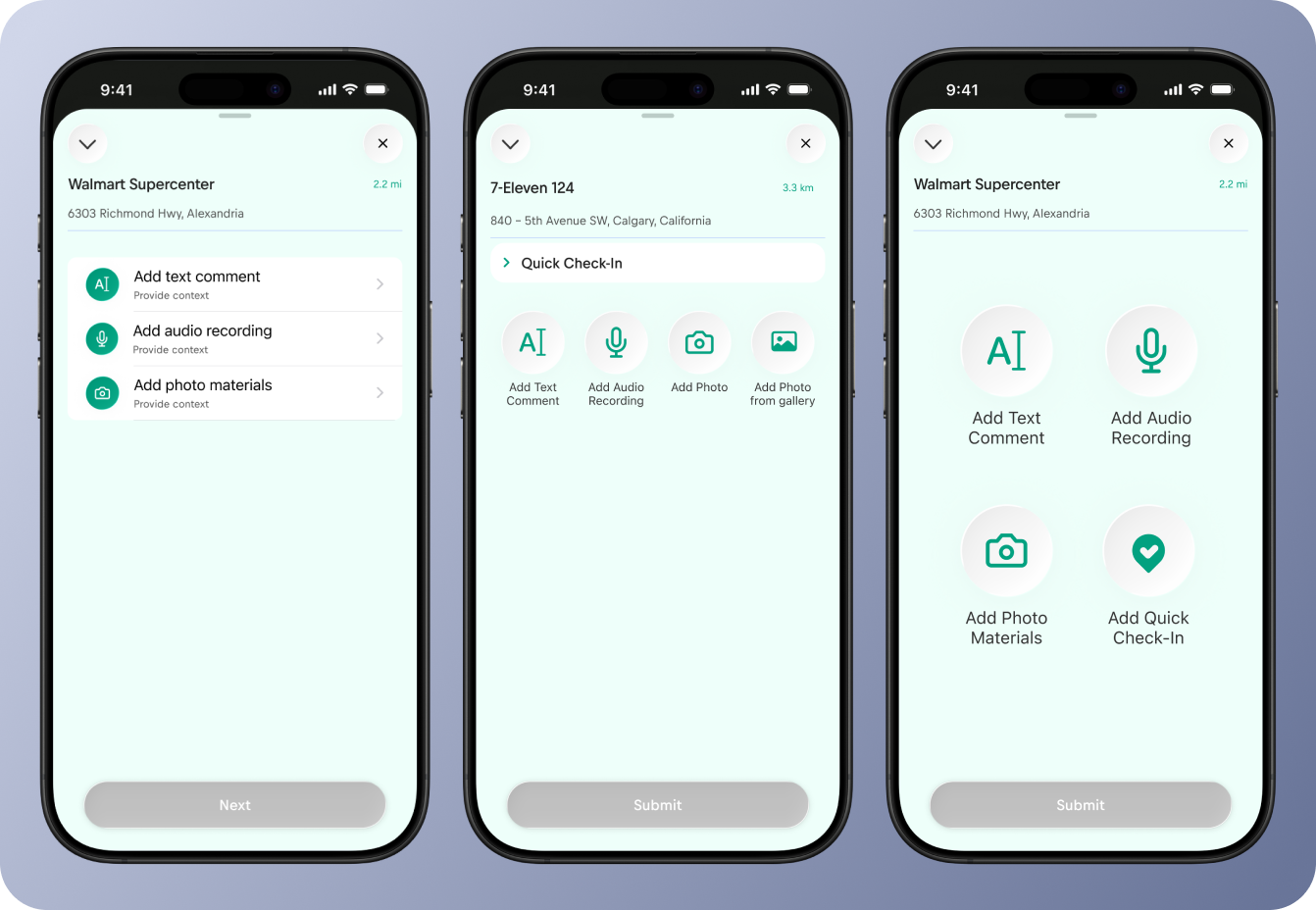
From a described list to three icons
The format-selection step had no predetermined solution. The brief was a constraint: log store info fast, without being forced through formats you don't need.
I went through four versions before landing on the final one.
V1 · Described list
Clear for a first-time user, too slow for a task done dozens of times a day.
V2 · Quick Check-In row + four icons
Two competing entry points on one screen.
V3 · Four-icon grid
Mixed two decisions: how to record and how much detail to give.
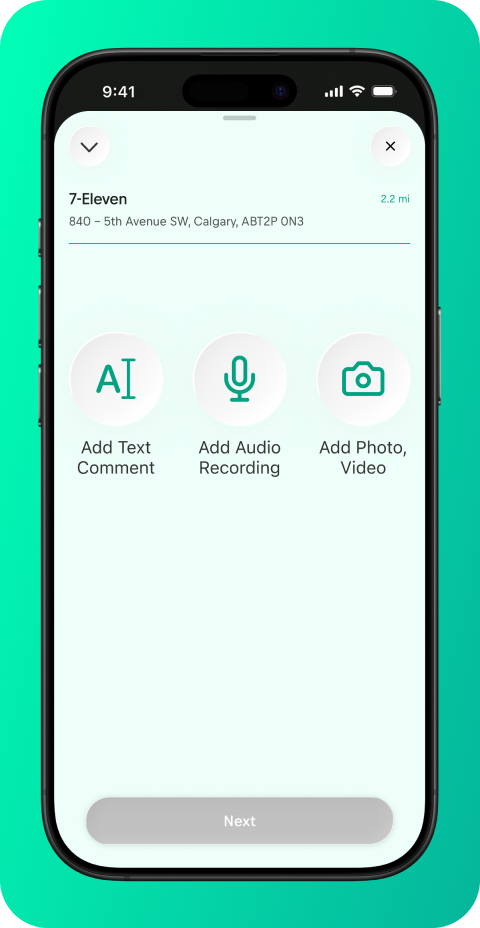
V4 · Three-icon grid
Text, Audio Recording, Photo/Video. Quick Check-In moved to the floating action button.
04
A small button carrying the core requirement
"Open, collapse, resume anywhere" needed a real interaction behind it. Employees are frequently pulled away mid-task.
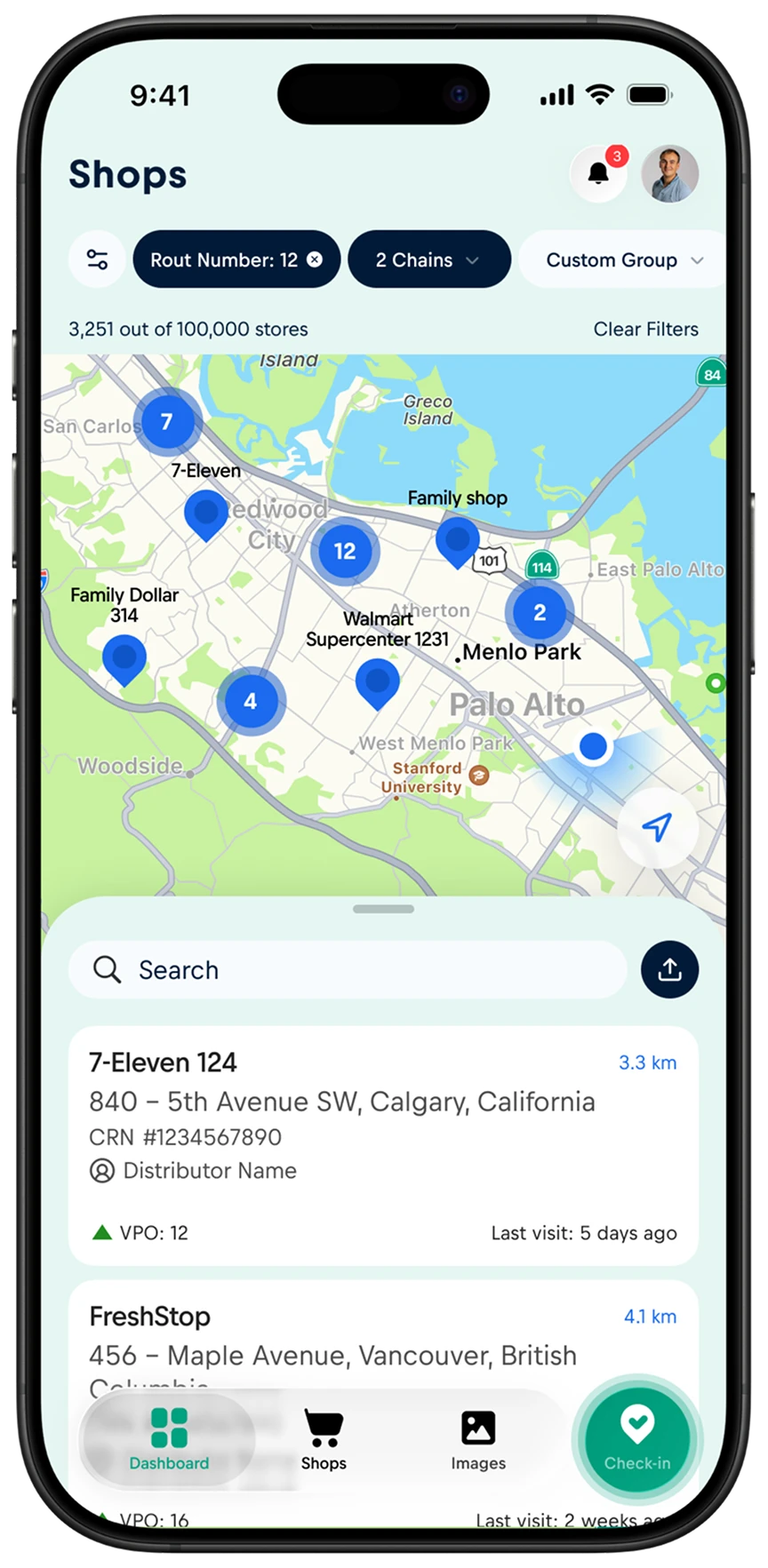
The answer was a floating action button. It persists across store search, store card, and check-in screens, so an employee can start a check-in, get interrupted, and pick it back up from wherever they land next. It also holds the quick check-in shortcut.
Persists on
Store search
Persists on
Store card
Persists on
Check-in
05
Making brand and Liquid Glass coexist
Two rule systems had to work together: an established brand identity and Apple's Human Interface Guidelines for Liquid Glass, with no precedent to borrow from.
Navigation followed the guidelines closely. Brand identity stayed in the content layer, so the app reads as native to iOS, not as a brand skin over it.
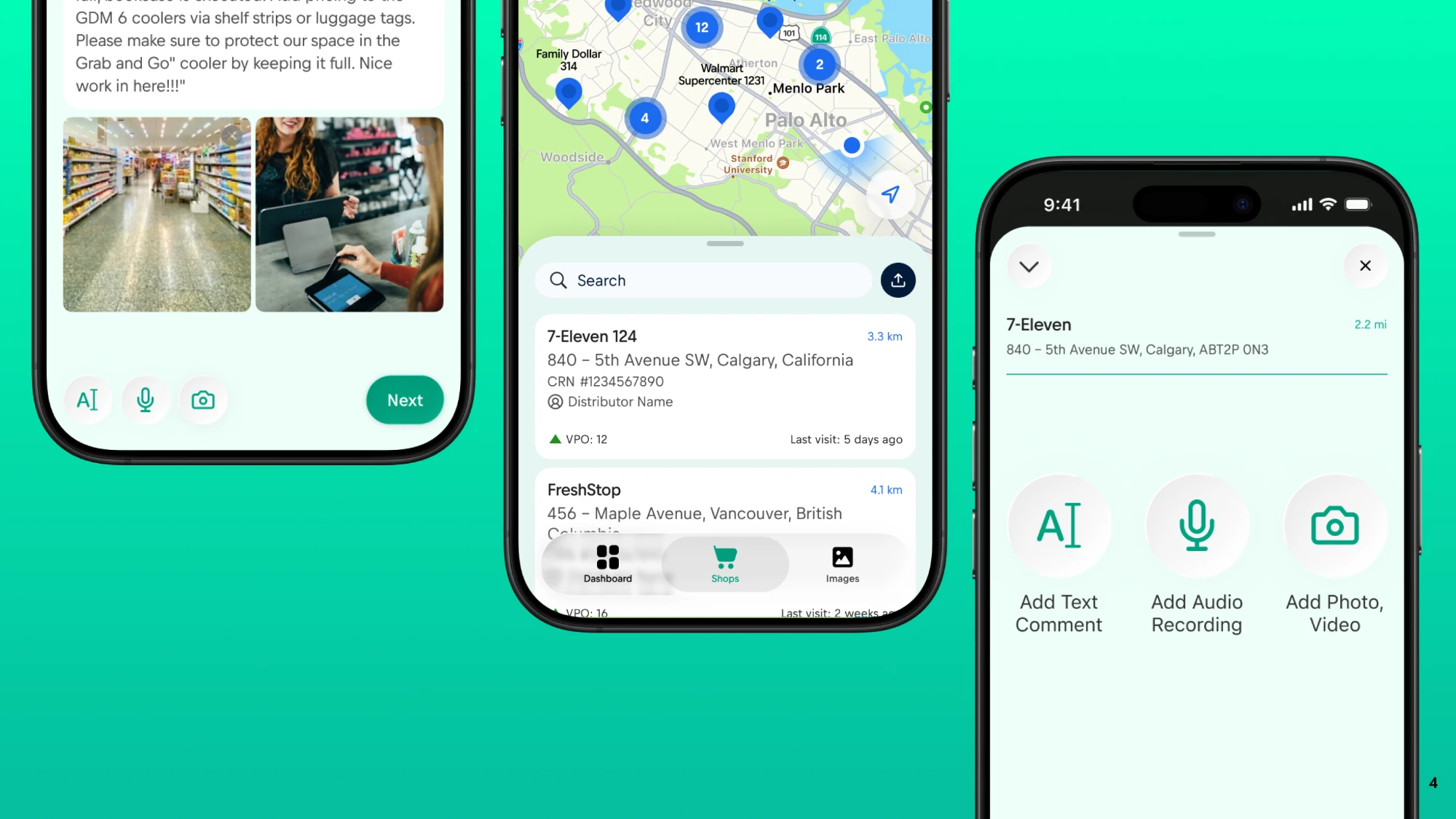
Bottom sheet
Translucent and draggable, it sits on top of the map so the employee never loses spatial context.
Search bar
Floats as its own glass surface.
Tab bar
Uses the guideline's pill-shaped active state.
Brand layer
Colors, icons, photography.
06
Final flow
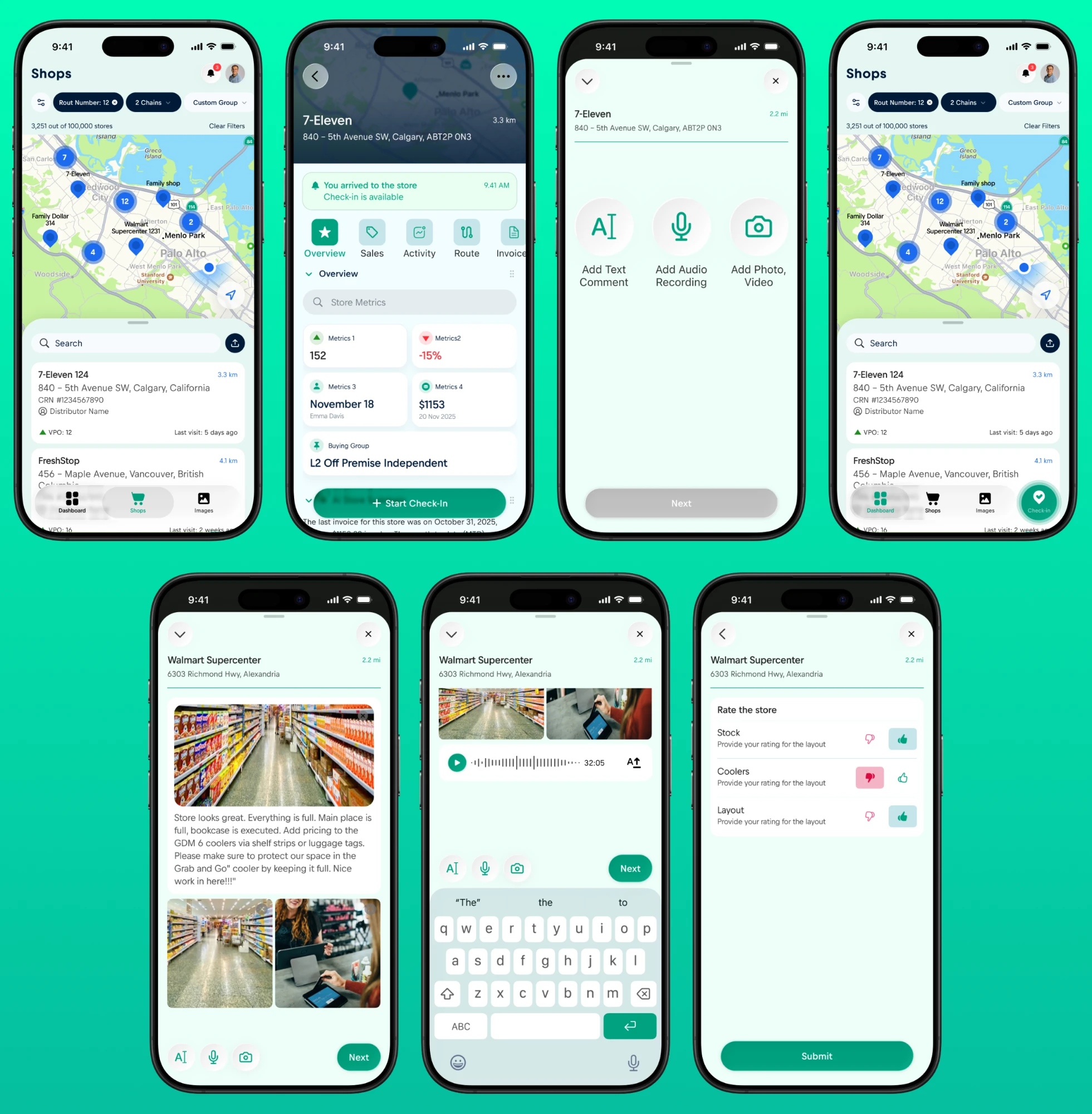
1 · Store search
Map or list view, filtered by route, chain, or custom group. Each card shows distance, CRN, last visit date, and VPO.
2 · Store detail / arrival
Tabs and core store metrics. On arrival, a banner confirms the visit and Start Check-In becomes available.
3 · Format selection
Text comment, audio recording, or photo/video.
4 · Fill-in
Formats can be combined in one check-in without restarting it.
5 · Rating
Stock, Coolers, Layout, each rated thumbs up or down.
6 · Submit
The check-in is posted to the store card.
07
Results
The client approved the presented design and flow, and the project was handed off to development.
Delivered
- End-to-end flow: search/filter → store card → check-in
- Multiple explored solutions for the check-in entry point
- The floating check-in button mechanic
- Onboarding, personal profile, and an analytics dashboard built on check-in data
- A design system at the intersection of brand and Liquid Glass
- An interactive prototype
08
What I learned
Hands-on practice with Human Interface Guidelines
Practical experience I can carry into future iOS projects.
Designing without a brief is a different skill
For the check-in entry point there was only a problem, no fixed solution. The direction that shipped wasn't the most novel one. It was the clearest at a glance.
A small UI element can carry a big requirement
The floating button looks like a minor addition, but it is where the core business requirement became a real interaction.